Please read ALL of the information below before upgrading. Several of the caveats below could adversely affect the success of your upgrade if not heeded. If you have any questions or concerns about your upgrade, please consult with Customer Support before continuing.
THE INFORMATION IN THIS ARTICLE APPLIES TO:
- EFT, versions 7.x - 8.0.6
DISCUSSION
Per Globalscape policy for liability reasons, Support does not upgrade or migrate the servers of our clients but provides instructions or guidance for accomplishing the process. It is possible to acquire an upgrade package from our Professional Services team to have them personally handle the process.
NOTES
- For the best outcome if you are running a version earlier than 7.4.13.15, please upgrade to v7.4.13.15 first, then upgrade to 8.0.1.4, or 8.0.2.23, and then v8.0.4, before upgrading to a later v8.x.
- If you are upgrading between versions that are more than 2 versions apart, you will need to complete more than one upgrade. (e.g., from 7.0 to 7.2, then from 7.2 to 7.4) After each upgrade, you will need to restart the EFT server service and log in to the administration interface before you start the next upgrade. (As described in the Globalscape End of Life (EOL) and Support Life Policy: Major Releases are designated by the numbers immediately to the left and right of the decimal point, such as 1.0, 2.0, 2.1, etc.)
- When upgrading to v8.0.6, EFT will convert the reply behavior for File Uploaded rules from synchronous to asynchronous by default. This may impact the flow of existing File Uploaded rules. To return to the legacy synchronous reply behavior, set the Advanced Property 'WaitOnFileUploadEventCompletionBeforeSendingResult" to true.
- If you've "silently installed" a previous EFT 8.0 release in HA mode using non default paths, upgrading to 8.0.2 - 8.0.5 using the installation wizard will cause the App data directory to default to the C:\Program Data\ directory and the EFT server service to not start. In v8.0.5, the installation wizard does offer the option to change the paths. When HA is configured and installed silently, a few configuration settings are available.
IMPORTANT: EFT v7.4.11 and later use a new SFTP library; therefore, before upgrading, export and convert your SFTP keys. The new version only creates RSA keys in OpenSSH new format. (You can't generate DSS keys and save keys in SSH.com format.) Refer to https://hstechdocs.helpsystems.com/manuals/globalscape/eft8-0-7/mergedprojects/admin/sftp_fips.htm in the help documentation for more information, and to the KB article https://kb.globalscape.com/Knowledgebase/11584/Converting-OpenSSH-keys-to-SSHcom-format for the conversion procedure.
Refer to https://kb.globalscape.com/Knowledgebase/11520/Upgrading-from-v7-to-v8-WTC-Workspaces-Customizations for information about WTC/Workspaces customizations.
Advanced property modifications to support certain known issues after upgrading:
-
KBArticle10492 - Force
“ClientFTP.DLL” to retain logs after completed file transfers
-
KBArticle11189 - Support
older SFTP clients Keyboard Interactive Authentication
-
KBArticle11200 - ReplaceBackslashWithSlashInPathsForSFTP;
ReplaceBackslashWithSlashInPathsForFTP
-
KBArticle11239 - FixDoubleSlashInPathsForFTP
-
KBArticle11266 - Allows older SFTP clients to connect (Customer assumes vulnerability
risk if registry modifications are applied)
-
KBArticle11439 - Switch to Legacy (Bitvise) SSH Library
-
KBArticle11506 - Known AWE issues after upgrading to EFT v7.4.7 from earlier versions of EFT
Upgrade Paths
You are able to upgrade to any version of
EFT, including the latest, if the following upgrade paths are followed:
| 6.5 |
7.0 and 7.1 |
| 7.0 |
7.1 and 7.2 |
| 7.1 |
7.2 and 7.3 |
| 7.2 |
7.3 and 7.4 |
| 7.3 |
7.4.x only |
| 7.4.x |
8.0.2.23, before upgrading to 8.0.4 |
| 8.0.4 |
8.0.5 or 8.0.6 |
*For versions after 8.0.6, please refer to Upgrading to v8.0.7.
You can upgrade from EFT SMB/Express to EFT Enterprise
within the same version (requires
purchase of Enterprise license). Then you can upgrade versions from there.
KBArticle11266 - Allows
older SFTP clients to connect (Customer assumes vulnerability risk if
registry modifications are applied)
If you are upgrading from EFT SMB/Express edition to EFT Enterprise, if
you are adding any modules, you may receive a new activation serial number.
If so, then it may be necessary to activate the software when you start
it for the first time.
Contact Support to obtain a new registration serial number or to determine
your eligibility for an upgrade. If you are moving an EFT from one computer
to another, contact the Globalscape customer service team or your account
manager so that we can adjust your account on our activation and registration
server. Activation on the new computer will not be possible until the
adjustment is made. If you want to test or verify an update prior to introduction
into your production environment, do not use your production serial number
for testing purposes.
Do not use this procedure to upgrade EFT that is in a cluster. If you are upgrading a cluster, refer to Installing
or Upgrading EFT in a Cluster.
If you are upgrading from Secure FTP Server, refer to "Upgrading
Secure FTP Server v3.3 to EFT Server v6.x" in the attachments below the article.
AWE:
- In EFT v8.0 and later, the AWE workflows are stored in SQLite database files. If you are using the Task Action in AWE, which is an AWE task that is calling another AWE task, you will need to export the AML files to a location that EFT can access. Refer to EFT online help for details of the database files.
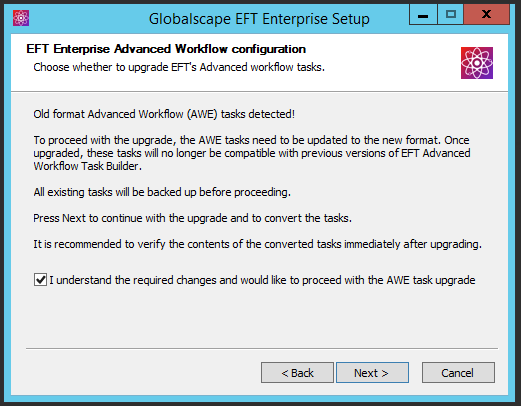
- In EFT v7.4.7, the Advanced Workflow Engine was updated. When you upgrade from an earlier EFT version to version 7.4.7 or later, a message will appear stating that "Old format Advanced Workflow (AWE) tasks detected!" The old tasks will be backed up and then converted to the new format. The converted task will not be compatible with older EFT versions. Select the "I understand..." check box, then click Next to proceed. In Silent installations or after importing older versions of AWE tasks, the AWE task will not be updated until you open it in the Task Builder.
DMZ Gateway:
ARM:
-
(If you are using ARM, Insight, and AWE) Before upgrading to EFT v7.4.7, upgrade EFT Insight to v1.0.5 so that the Advanced Workflow Engine tables will be available when upgrading ARM. AWE v8 tasks will be updated to AWE v10 tasks upon upgrade. If you later import AWE v8 tasks, those tasks will not be upgraded.
-
During updates or upgrades, EFT needs full DB Owner access to
update the schema. Once it is set up, EFT Server only needs to be
able to read, write, and execute stored procedures. Refer to the Knowledgebase
article Configuring EFT Server Permissions
in SQL Server for more information.
-
If you are using an ODBC database, run the SQLServerODBCUpgrade.sql script found in C:\ProgramData\Globalscape\EFT Server Enterprise\SQL Server. Also refer to Creating Tables for Your ODBC Data Source.
-
Refer to Upgrading the EFT Database and Upgrading Large Databases in your version of EFT help for important information.
API:
WTC:
-
If you are upgrading to EFT v7.3.2, the WTC licensing has
changed from concurrent to CAL. Refer to https://kb.globalscape.com/KnowledgebaseArticle11311.aspx for
details.
-
If you are upgrading to EFT 7.4.2 or later, the WTC no longer requires a licenses; it is included in Enterprise and in the HTTP/S module in SMB.
-
(Java-enabled version) When upgrading the WTC, workstations
might receive a Java error, but then the WTC will load and be functional.
Refer to KB article#10654 for details.
-
When upgrading, the \web\custom\ and \web\public\
folders are backed up and renamed with the date and time (e.g., \customBackup_9-28-2010_16-18\
and \publicBackup_9-28-2010_16-18\). The new versions
of the files may have some updated content, so rather than overwriting
the new files with your old files, you should manually copy your customizations
to the new files after upgrading. This applies to any edits for the
per-Site and per-Server login pages, Web Transfer Client (WTC) interface,
Account Management interface, and AS2 Management interface.
-
End users will need to clear their browser cache: refer to KB
https://kb.globalscape.com/KnowledgebaseArticle10654.aspx
for more information.
-
FTP requires UPLOAD permission in addition to APPEND to resume
a partial file transfer.
-
In v7 and later, the WTC no longer logs you
out when you refresh or close the browser; the session still times
out as normal.
Event Rules:
-
The Event Rule file Copy/Move wizard provides control for overwrite
options. The overwrite options were set in earlier versions using
registry keys. Any associated registry keys will now be ignored and
you should update your Event Rule Actions with the desired overwrite
option.
-
During the upgrade, if a non file-trigger rule contains an %FS.FILE_NAME%
variable, it will be converted to %SOURCE.FILE_NAME% and a WARNING
will record the change in the EFT.log. Refer to the Variables (List)
in the help documentation for more information about the %SOURCE.FILE_NAME%
variable.
-
By default, IP Access-related Event Rules are limited to 1000
rules. If you upgrade with more than 1000 denied IP addresses, the
rule count overflows and you cannot create new rules. Refer to Knowledgebase
article "Cannot
create new Event Rules after upgrading" for a registry fix.
As always, it is a good
idea to read the Release Notes/Change Log before you begin.
To upgrade the software
- Log in to the administration interface. If you are also upgrading
the database files, you will need the ARM database name, username,
and password.
- Back up the existing installation directories and any other
files you may have installed elsewhere. If you are upgrading
EFT Enterprise, you can run an automatic backup and save
that backup file in an easily accessed location or removable media.
- Close the administration interface and stop the EFT service.
- Launch the installer. The Choose an installer
page appears.
- Click EFT or EFT Enterprise.
The installer loads the required components, then the Welcome
page appears.
- Click Next. The license agreement appears.
- Scroll or page down to review the agreement, then click I
Agree to continue.
- Click Upgrade to upgrade the existing configuration
and copy your existing Sites, users, etc. to the new installation.
- Click Next. If a message appears stating that
the SFTPCOMInterface.dll will be upgraded, click OK
to dismiss the message.
- Click Next. The Choose Components
page appears.
- Leave both the EFT and the Admin Interface check boxes selected, then click Next. The Choose Install Location page appears.
- Keep the default location or click Browse to specify an alternate location, then click Next. The Configuration data path page appears.
- Keep the default location or click Browse to specify an alternate location, then click Next. The Choose Start Menu Folder page appears.
- Keep the default location, click an alternate location, or type a name to create a new folder, then click Next. The ARM page appears.
- Choose whether to configure ARM now or Skip it, then click Next.
- Choose the database type (SQL or Oracle) that contains your EFT data, then click Next.
- Choose whether to create a new database or upgrade the existing database, then click Next.
- Specify the database connection information, then click Next.
- On the Confirm Database Upgrade page, if there are updates to the database, review the warning message, click I understand, then click Install. (If there are no changes to be made to the database, the check box will not appear.)
- If there are any errors to repair, you can repair them on the database now, and then click Reanalyze to retest.
- The wizard will upgrade the database (if needed) and the specified EFT components. On the final page of the wizard, select the check boxes, as needed, then click Finish.
- After installation is complete, log in to EFT. If the server service has not started, a message will ask you to start it.
- Review the EFT help in the administration interface or "WhatsNew.htm" in your version of EFT to read about changes in this version.
If you are upgrading from EFT SMB/Express to EFT Enterprise
After you have finished installing EFT Enterprise, uninstall EFT
SMB/Express. When you launch the administrator interface, the following error
message might appear:
“Cannot find report definition
file. File Missing....”
and lists several files.
To resolve the issue
- Close the interface.
- Execute the following commands in the C:\Program Files\Globalscape\EFT
Enterprise directory:
Regsvr32.exe vsflex8l.ocx
Regsvr32.exe vsprint8.ocx
Regsvr32.exe vsrpt8.ocx
- Reopen the interface; the message should no longer appear.