THE INFORMATION IN THIS ARTICLE APPLIES TO:
- EFT Enterprise 6.3 -8.1
- Advanced Workflow Engine
DISCUSSION
The Advanced Workflow Engine (AWE) for EFT Enterprise provides an expanded ability to automate tasks when added to EFT Event Rules. AWE provides an extended list of built-in actions and provides for more complex logic when required.However, some 57 actions are hidden by default from the list of Available Actions in the AWE Task Builder. These actions are neither covered in the EFT documentation nor subjected to Globalscape’s QA validation. In many cases, these hidden actions are simply not applicable to the environment in which AWE runs, such as those geared around interactive desktop use cases or the “Write to Log” action in which the AutoMate Event Log functionality is simply not carried over to the AWE implementation in EFT. In other cases, such as for AS2, they may conflict with existing EFT modules. But others, like the Amazon S3 functions, may prove quite useful in some scenarios.
Because they are hidden by default, an EFT administrator must choose to enable them to make them easily accessible to administrators. To do this, the administrator must edit an XML configuration file, called automatedworkflow.xml located in ..\AWE\bin under the EFT installation directory. The hidden AWE actions are commented out in the AvailableActions section. An administrator could also use this same technique described below to hide individual actions or entire groups of actions that would otherwise be enabled by default, such as the “Twitter” action, if the action or group proves unreliable or troublesome.
There are two types of elements here: ActionFolder and ActionName. When you see the ActionFolder element, it’s used to ensure that ALL possible actions of this group are represented. Naming each enabled action is therefore unnecessary. However, there are some groups with enabled actions that do have one or more actions hidden by default. For these, instead of an ActionFolder element, they use the ActionName element to specify each individual action in the group that will be displayed. Any other actions in the group not explicitly named in the XML remain hidden from the list of actions in the AWE Task Builder. Luckily, for these mixed groups, someone was thoughtful enough to neatly arrange each group of enabled actions under a commented header.
For example, the “Display” action is hidden by default under the “System” group in AWE. So there is no entry “<ActionFolder>System</ActionFolder>” but rather the commented line “<!--Subaction(s) for System group-->” under which appear a number of enabled actions. As a further illustration, take the example of the “Database” group, with all actions enabled, versus the “Window” group with only a single action “Dialog” enabled while the rest are hidden. The result in the XML configuration file looks like this:
|
<ActionFolder>Database</ActionFolder>
<!--Subaction(s) for Window group-->
<ActionName>Dialog</ActionName>
|
There are some groups missing entirely from the default XML, such as the “Interactivity” group. Presumably this is because there are simply no actions whatsoever in the group that were applicable or deemed desirable to include. Note that two of the hidden groups, Amazon and VMWare, are actually included in the default list but are commented out.
STEPS TO ENABLE ACTIONS OR GROUPS
These steps must be performed on the computer(s) where the AWE Task Builder is to be run. For example, if you use Remote Desktop or similar to log into the EFT server computer itself and administer it that way, including running the AWE Task Builder, then these steps may only need to be performed once, on the server itself. However, if you enable the remote administration function in EFT, and you have installed the EFT administrator application on your workstation or other computer, then these steps will need to be performed on whichever computer(s) the EFT administrator application is typically run in order to make the desired changes to the list of actions. Else editing an AWE Task with an instance of an action hidden by default on a computer without these steps performed will still allow the administrator to see and modify the otherwise hidden actions that are already present in the AWE Task, but the administrator cannot easily add hidden actions to new AWE Tasks or existing ones that lack the hidden actions. As a quick work-around, the administrator could copy and paste the action(s) from one AWE Task where they are already present into another AWE Task.
For this example, we will enable only the “S3” action that exists in the otherwise hidden “Amazon” group. The following steps reflect the default pathing.
- Close out any open instances of the AWE Task Builder.
- Open Windows Explorer to C:\Program Files (x86)\Globalscape\EFT Server Enterprise\AWE\bin.
- Open the file automatedworkflow.xml in a suitable text editor and look for the line, around line number 210, with the following start tag: <AvailableActions>
- Add the following element in a new line under that start tag: <ActionName>S3</ActionName>
- Save your changes to the file.
For clarity here is a BEFORE and AFTER snippet to illustrate what it should look like.
Before:
<AvailableActions>
<!--Subaction(s) for System group-->
<ActionName>Run</ActionName>
After:
<AvailableActions>
<ActionName>S3</ActionName>
<!--Subaction(s) for System group-->
<ActionName>Run</ActionName>
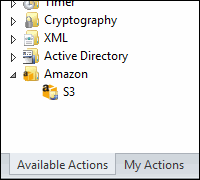
Once completed, the AWE Task Builder will have a new folder available at the bottom of the list, called Amazon, in which you’ll find the newly added S3 action:
If you wanted to enable ALL of the otherwise hidden Amazon actions, then you could insert the element “<ActionFolder>Amazon</ActionFolder>” instead. Or because the Amazon group happens to be included in the XML by default, only commented out, you could scroll to the end of the list of available actions and simply uncomment the Amazon action folder element.
To do the reverse, either remove the existing action name or action folder element. For those action folders with no actions hidden by default, and you do not wish to hide all of the actions, you would need to remove or comment out the existing action folder element and create a new action name element for each action in that group you wished to enable, leaving out any actions you wished to hide.
FOLDERS WITH NO HIDDEN ACTIONS IN AWE:
- Active Directory
- Compression
- Cryptography
- Database
- Excel
- File
- Flow
- Loop
- SNMP
- Terminal
- Text
- Timer
- Variables
- XML
HIDDEN FOLDERS AND ACTIONS IN AWE:
- DDE
- Amazon
- AutoMate
- Clipboard
- Clear
- Copy
- Cut
- Get Clipboard
- Paste
- Set Clipboard
- Interactivity
- Check
- Click Mouse
- Get Selected List Item
- Get Selected Tree Item
- Get Text
- Hold Down Key
- Move Mouse
- Move Mouse to Object
- Press
- Release Key
- Select Item
- Select List Item
- Select Tree Item
- Send Keystrokes
- Set Text
- Multimedia
- CD Player
- Play Audio
- Speak
- Volume
- Network
- Security
- Session
- System
- VMWare
- Guest OS Operations
- VM Operations
- Wait
- Window